Workflow Automation
Put Your Follow-Ups on Autopilot
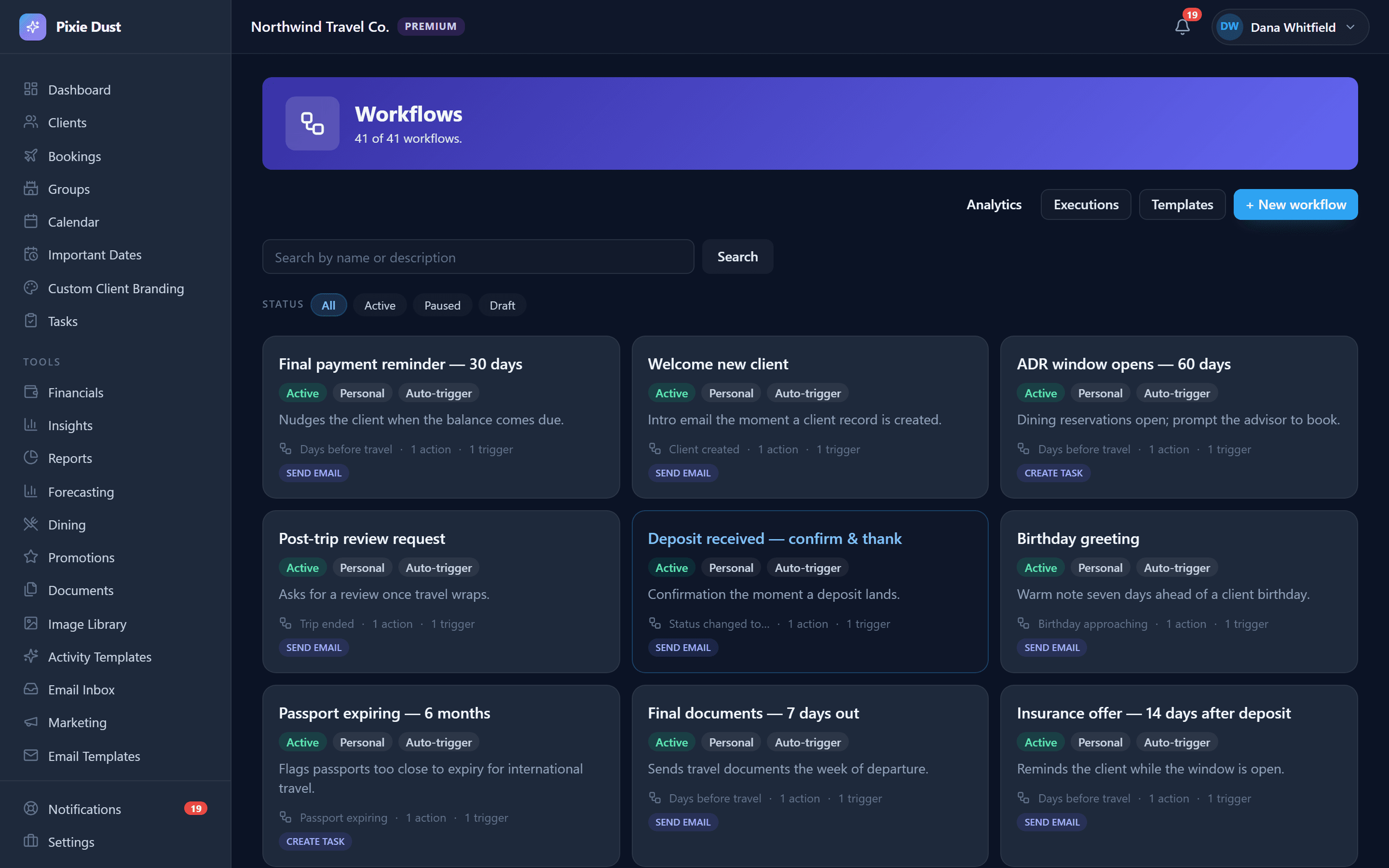
Create rules that automatically send emails and create tasks when things happen in your CRM — so nothing falls through the cracks.
Simple If-Then Rules
Workflows follow a simple pattern: when something happens, do something automatically. No complex flowcharts or programming required — just pick a trigger, pick an action, and turn it on.
When
A booking is created
Then
Send a welcome email
Triggers
Choose what starts the workflow. Triggers fire automatically based on events in your CRM.
Booking Created
Fires when a new booking is added to the system.
Status Changed
Fires when a booking moves to a specific status like Confirmed or Completed.
Date Approaching
Fires a set number of days before travel start, payment due dates, or any booking date.
Actions
Choose what happens when the trigger fires. Each workflow can perform one action automatically.
Send an Email
Automatically send a template-based email to the client. Uses your email templates with auto-filled variables — client name, trip dates, resort, and more.
Create a Task
Automatically create a task on your to-do list. Set the title, priority, and due date relative to the trigger event.
Workflow Ideas to Get You Started
New booking created
Send welcome email with trip preparation checklist
Travel start date is 30 days away
Create task: Confirm dining reservations
Travel start date is 7 days away
Send email: Final trip details and packing list
Booking status changed to Completed
Send email: Thank you and review request
Payment due date is 14 days away
Create task: Send payment reminder to client
Booking status changed to Confirmed
Send email: Booking confirmation with next steps
Runs in the Background
Date-based workflows run automatically every day. Event-based workflows (like booking created or status changed) fire instantly when the event happens. You set it up once and forget about it — your CRM handles the rest.
Travel agents who set up just a handful of workflows typically save hours each week on repetitive follow-ups. Instead of manually checking which clients need a payment reminder or a pre-trip email, the system handles it for you — consistently and on time. No more sticky notes, no more forgotten follow-ups, and no more late-night “did I send that?” moments.
Frequently Asked Questions
How many workflows can I create?
There is no hard limit on the number of workflows you can create. Build as many as you need to cover different booking types, client segments, and trip timelines. Most agents start with three to five core workflows and add more over time.
Can I pause or disable a workflow?
Yes. Every workflow has an active/inactive toggle. Turn a workflow off at any time and it stops firing until you re-enable it. This is useful for seasonal workflows or when you want to test changes before going live.
Do workflows work with team accounts?
Workflows are scoped to your account, so each agent on a team can create their own automations. If you manage bookings for other agents on your team, workflows you create will apply to bookings within your scope.
Can workflows trigger for specific booking types only?
Yes. You can configure conditions on your workflow so it only fires for certain booking types, destinations, or statuses. For example, you could create a workflow that only sends a Disney dining reminder for Walt Disney World bookings.
What happens if a workflow fails to send an email?
If an email fails to deliver, the system logs the failure so you can see it in your workflow history. You can then resend manually or troubleshoot the issue. Task-based actions are created locally and are not affected by email delivery.
Thirty days. No card.
From $10/month for solo agents, with per-seat plans for host agencies. Your clients get the trip app free.