Calendar & Scheduling
Keep Your Schedule in One Place
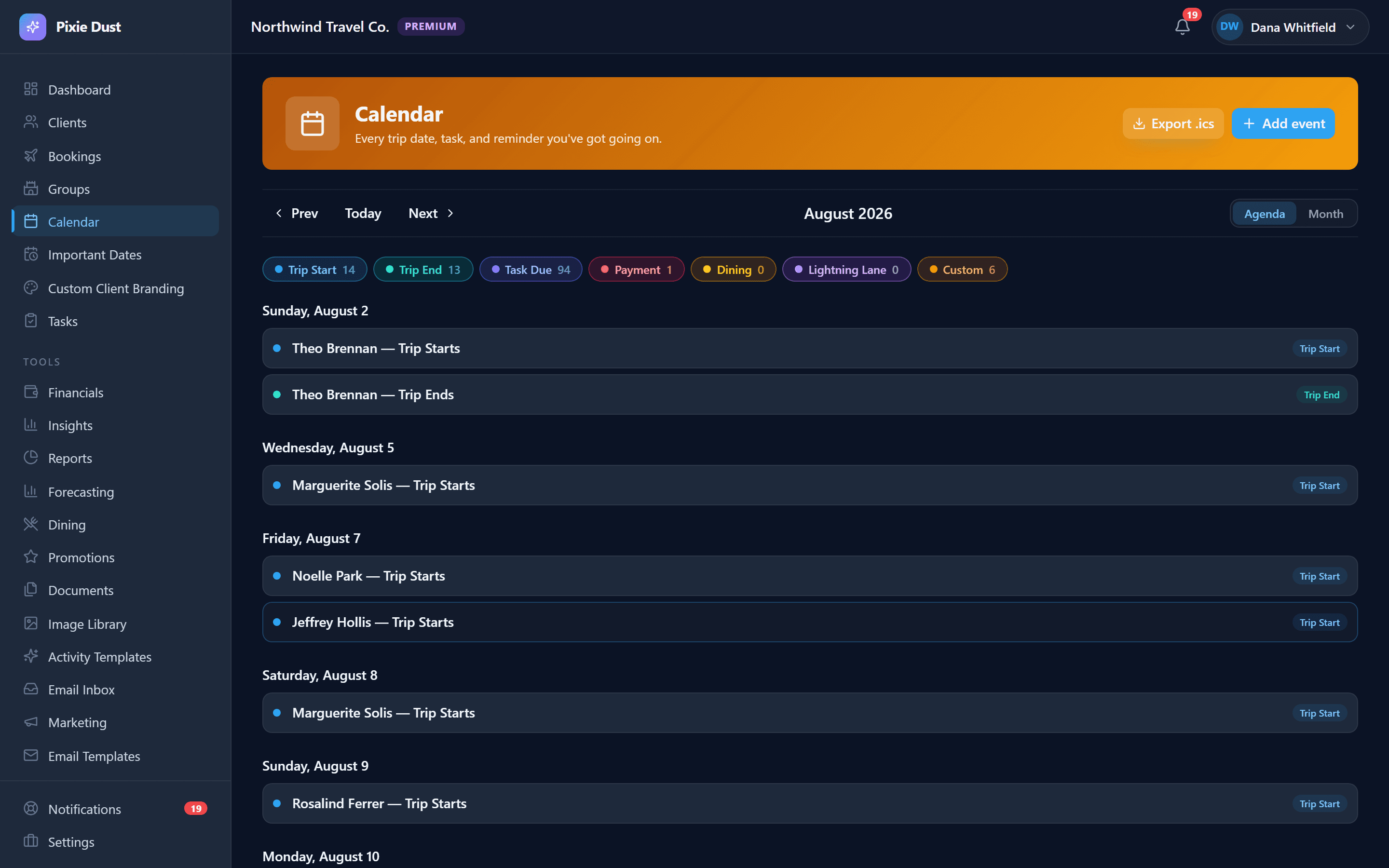
Pixie Dust CRM includes a built-in calendar view that shows your bookings, important dates, and tasks. You can also sync everything to your personal calendar with an iCal feed. Here is how to get the most out of it.
1. The Built-In Calendar View
The calendar is available on the web app and gives you a monthly overview of everything on your plate. No more flipping between spreadsheets and your phone calendar.
What Shows Up
The calendar pulls in data from across your CRM automatically:
Creating Manual Events
Need to block off time for a consultation call or a supplier webinar? Tap any date on the calendar to create a manual event. Give it a title, pick a time, and it will appear on the calendar alongside your booking events. Simple and quick.
Pro Tip
Use the calendar as your daily planner. Start each morning by checking what trips are departing or returning, which tasks are due, and whether any client birthdays are coming up this week. It takes 30 seconds and keeps you one step ahead.
2. Syncing with Google Calendar, Apple Calendar & Outlook
If you already live in Google Calendar, Apple Calendar, or Outlook, you do not have to abandon it. Pixie Dust CRM generates an iCal feed URL that you can subscribe to from any calendar app.
Open Settings
Go to Settings on the web app and find the Calendar Sync section.
Generate your feed URL
Tap "Generate iCal Feed" to create a unique, private URL for your calendar feed. This URL is tied to a secure token so only you can access it.
Copy the URL
Tap the copy button to copy the iCal feed URL to your clipboard.
Subscribe in your calendar app
In Google Calendar, go to "Other calendars" > "From URL." In Apple Calendar, go to File > New Calendar Subscription. In Outlook, add a calendar from the internet. Paste your feed URL and subscribe.
Events appear automatically
Your booking events, important dates, and tasks will show up in your external calendar. Most calendar apps refresh the feed every few hours, so new events appear without any extra work.
One-way sync
The iCal feed is read-only. Events from Pixie Dust CRM will appear in your external calendar, but changes you make in Google Calendar or Apple Calendar will not sync back to the CRM. Always make changes in Pixie Dust CRM to keep everything accurate.
3. Managing Your Feed Token
Your iCal feed URL contains a private token that grants access to your calendar data. Here is how to keep it secure.
Keep It Private
Your feed URL is for your eyes only. Do not share it with anyone or post it publicly. Anyone with the URL can see your booking dates and client names, so treat it like a password.
Revoking a Token
If you accidentally share your feed URL or suspect it has been compromised, you can revoke it from Settings. Tap Revoke Feed Token to instantly invalidate the old URL. Anyone subscribed to the old URL will stop receiving updates.
Generating a New Token
After revoking, you can generate a fresh feed URL and re-subscribe in your calendar app. The process is the same as setting it up the first time — generate, copy, subscribe.
Stay organized
Between the built-in calendar and the iCal sync, you have a complete view of your schedule no matter where you check it. Use the CRM calendar for detailed planning and your synced calendar for quick glances throughout the day. You will never double-book yourself or miss a departure date again.
Ready to try it yourself?
Thirty days free, no credit card. From $10/month for solo agents, with per-seat plans for host agencies.