Contracts
Create, Send, and Sign Contracts Without the Paperwork
Getting a signed contract before every trip protects both you and your client. Pixie Dust CRM makes the entire process digital — from building the template to capturing a signature — so you never have to chase down a printed form again.
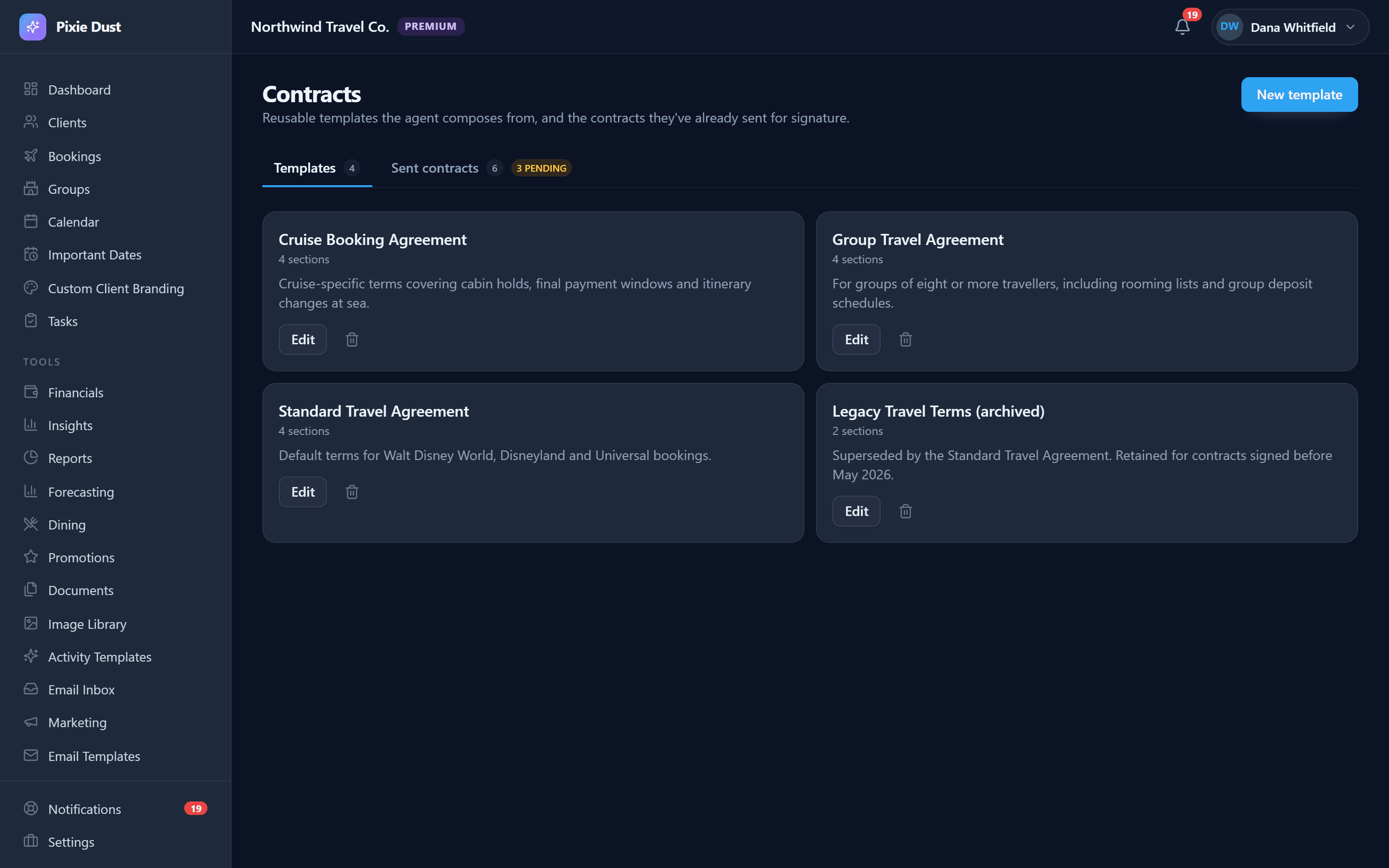
1. Building Contract Templates
A contract template is a reusable document that you create once and use for every booking. It contains your standard terms, policies, and cancellation rules — with dynamic variables that automatically fill in the client and trip details.
The Template Editor
The contract template editor gives you a rich text editing experience. Write your contract language, format it with headings and bullet points, and insert variables wherever you need client-specific information to appear.
Template Variables
Variables work just like they do in email templates — wrap the variable name in double curly braces and the system fills in the real values when the contract is generated.
{{clientName}}The client’s full legal name
{{destination}}The booked resort or cruise line
{{travelDates}}Check-in and check-out dates
{{totalPrice}}The total price of the booking
{{depositAmount}}The required deposit amount
{{agentName}}Your name as the booking agent
{{agentEmail}}Your email for client questions
{{todayDate}}The date the contract is generated
Pro Tip
Create separate templates for different booking types. Your Disney World contract might include park ticket policies, while your cruise contract covers cabin assignments and embarkation details. Having purpose-built templates saves time and ensures nothing important is missing.
2. Sending Contracts and Capturing Signatures
Once your template is ready, sending a contract to a client is a quick, seamless process. Your client receives the contract, reviews it, and signs it — all without needing to create an account or download an app.
Generate the contract
From a booking detail screen, choose your template and generate the contract. All variables fill in automatically with the booking and client details.
Review and send
Preview the generated contract to make sure everything looks right. When you are satisfied, send it to the client via email. They receive a link to the signing page.
Client reviews and signs
Your client opens the link in any browser — no login required, no app needed. They read the contract, draw their signature on screen (works on phone, tablet, or desktop), and submit.
Signed copy saved automatically
Once signed, the completed contract with the captured signature is saved to the booking’s documents. Both you and the client receive a confirmation email with a copy.
No Login Required
The public signing page is designed to be as frictionless as possible. Your client clicks the link, sees the contract, signs it, and they are done. No account creation, no password, no app download. This dramatically increases the chances of getting a signed contract back quickly.
3. Contract Statuses and Lifecycle
Every contract moves through a clear lifecycle so you always know where things stand. No more wondering if a contract was sent, opened, or still sitting in a drafts folder.
Draft
The contract has been created but not yet sent to the client. You can still edit the content.
Sent
The contract has been emailed to the client. They have the link and can sign at any time.
Signed
The client has signed the contract. The completed document is saved to the booking.
Expired
The contract was not signed before the expiry date. You can resend or generate a new one.
Automatic Expiry Reminders
When you send a contract, you can set an expiry date. If the client has not signed by that date, the system can automatically send a reminder email nudging them to complete the signing. You also receive a notification so you can follow up personally if needed. This way, contracts do not sit in limbo — they either get signed or you know they need attention.
Best Practice
Send your contract as soon as a booking is confirmed and set the expiry for 7 days. Most clients sign within the first day or two, but the reminder catches anyone who forgot. Getting the contract signed early protects you from cancellations and sets clear expectations for the trip.
4. Tips for Effective Contracts
A good contract protects you while still being clear and client-friendly. Here are a few tips to make your contracts work harder for your business.
- 1
Keep the language clear
Avoid legal jargon where possible. Your clients are not lawyers — they want to understand what they are agreeing to. Plain language builds trust.
- 2
Include your cancellation policy
Be specific about deadlines, penalties, and refund timelines. Clarity here prevents misunderstandings later and protects your commission.
- 3
Use variables for accuracy
Let the system fill in names, dates, and prices instead of typing them manually. This eliminates copy-paste errors and ensures every contract matches the booking exactly.
- 4
Send early, follow up promptly
Do not wait until the last minute to send a contract. The sooner it is signed, the sooner everyone can focus on the fun part — planning the trip.
Bottom line
Digital contracts eliminate the back-and-forth of printing, scanning, and mailing. Your client signs from their couch in 30 seconds, and you have a legally captured signature stored right alongside the booking. Professional, fast, and completely paperless.
Ready to try it yourself?
Thirty days free, no credit card. From $10/month for solo agents, with per-seat plans for host agencies.