Promotions
Stay on Top of Deals and Drive More Bookings
Supplier promotions come and go fast. Pixie Dust CRM helps you track them, pin the ones that matter, and even create your own custom promotions. This guide shows you how to make the most of the promotions system.
1. Viewing & Managing Supplier Promotions
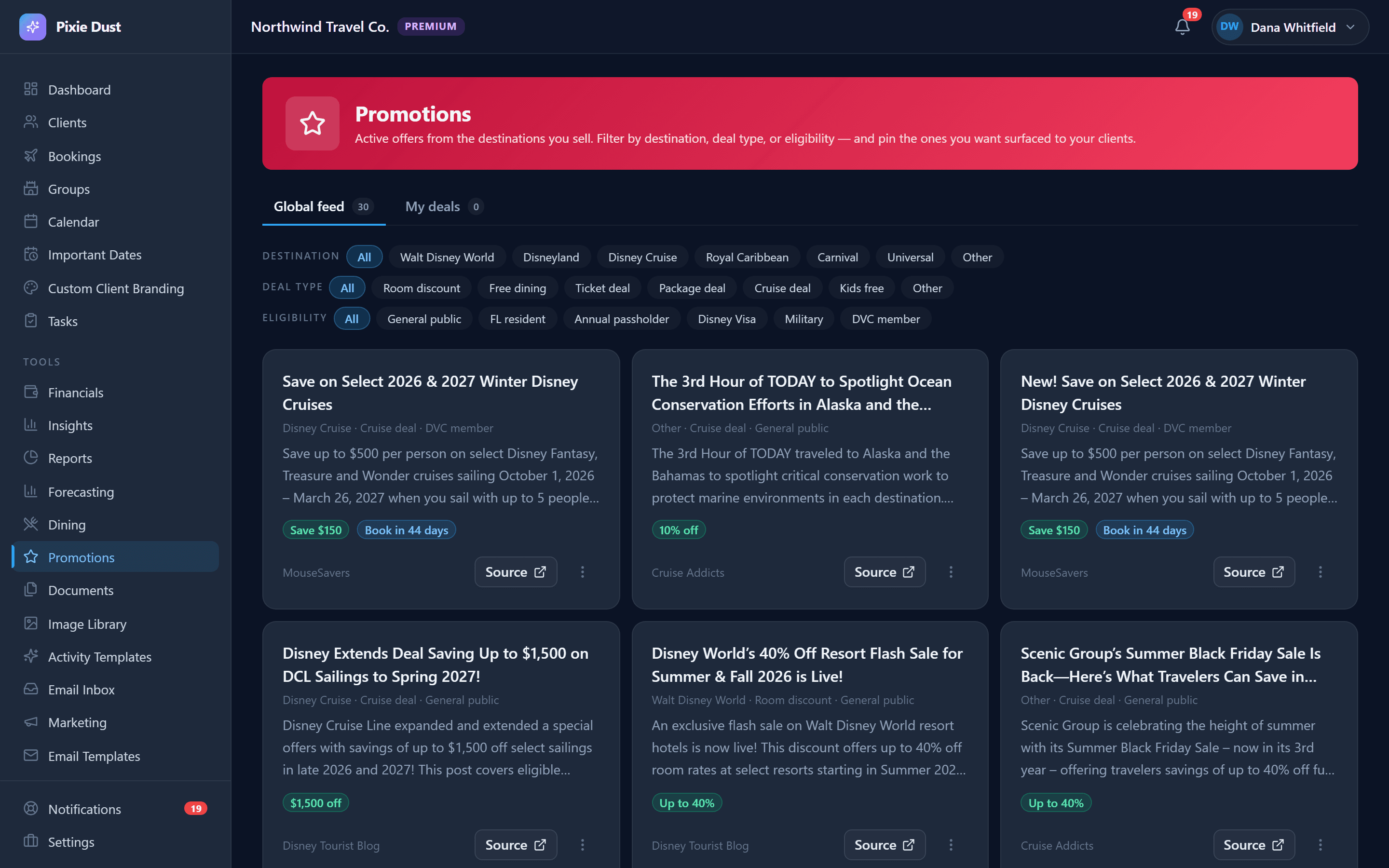
The Promotions screen shows you current deals from suppliers — discounted packages, limited-time offers, bonus perks, and more. Instead of sifting through emails and Facebook groups, everything is in one place.
Browsing Promotions
Open the Promotions section from the main navigation. You will see a list of active promotions with the supplier name, deal summary, valid dates, and any applicable booking codes. Scroll through to see what is available right now.
Pinning Favorites
See a deal that is perfect for one of your clients? Tap the pin icon to save it to the top of your list. Pinned promotions stay front and center so you do not lose track of them while you work on matching the right client to the right offer.
Dismissing Irrelevant Promotions
Not every deal is relevant to your business. If you specialize in Disney vacations, you probably do not need to see cruise line promotions every day. Tap the dismiss button to remove a promotion from your list. It will not come back unless the supplier updates the offer.
Pro Tip
Check the Promotions screen at the start of each week. Supplier deals often launch on Mondays or at the beginning of the month. A quick scan takes 2 minutes and might reveal the perfect offer for a client you have been quoting.
2. Creating Custom Promotions
Supplier deals are great, but sometimes you want to create your own promotions — a seasonal special, a referral bonus, or a limited-time discount for your loyal clients. Pixie Dust CRM makes that easy.
Tap "Create Promotion"
On the Promotions screen, tap the create button to open the promotion form.
Fill in the details
Add a title, description, and any terms or conditions. Be specific so clients know exactly what they are getting — "$100 off Walt Disney World packages booked before April 30" is better than "Spring Sale."
Set valid dates
Choose a start and end date for the promotion. The promotion will appear as active during this window and automatically expire when the end date passes.
Save and share
Once saved, the promotion appears in your list. You can reference it when messaging clients or include it in your follow-up conversations.
Make it personal
Custom promotions are a powerful way to re-engage past clients. Create a “Welcome Back” deal for clients who have not booked in six months, or a birthday month discount for clients with upcoming birthdays. Personal touches like these turn one-time bookers into repeat clients.
3. Promotion Lifecycle & Automatic Expiry
Promotions are not static — they have a lifecycle. Here is how Pixie Dust CRM handles promotions from start to finish so you do not have to babysit them.
Active Promotions
Any promotion with a valid date range that has not passed its end date is considered active. These show up in your main promotions list and are available for pinning or sharing with clients.
Automatic Expiry
When a promotion's end date passes, it automatically moves to the expired state. You do not need to manually remove or archive it. Expired promotions are hidden from the main list but remain in your history so you can reference them later or re-create a similar deal next season.
Editing & Extending
Need to extend a promotion that is doing well? Open the promotion, update the end date, and save. It stays active with the new date. You can also edit the title, description, and terms at any time — no need to create a new one from scratch.
Stay proactive
The best agents use promotions as conversation starters, not just price cuts. When a new supplier deal drops or you create a custom promotion, message the clients it would be perfect for. A well-timed “I saw this deal and thought of you” message can turn a dormant lead into a booked vacation.
Ready to try it yourself?
Thirty days free, no credit card. From $10/month for solo agents, with per-seat plans for host agencies.